Microsoft Excel includes a powerful statistical add-in called the Data Analysis ToolPak that provides ready-to-use functions for complex statistical analyses including t-tests, z-tests, correlations, regression analysis, ANOVA, and more. While this tool is built into Excel, it does not load automatically and requires manual activation.
Installing the Data Analysis ToolPak transforms Excel from a basic spreadsheet application into a comprehensive statistical analysis platform. Instead of building complex formulas manually, you can access pre-configured statistical functions that generate professional results with just a few clicks.
This guide provides step-by-step instructions for installing the Data Analysis ToolPak on both Windows and macOS operating systems. Whether you're a student, researcher, or business analyst, you'll learn how to activate this essential tool and unlock Excel's full statistical capabilities.
How to Add Data Analysis ToolPak in Excel on Windows
First, we must open Excel, navigate to the Data tab, and check if the Data Analysis section is present. If not, proceed with the following steps to install Data Analysis Toolpak in Excel.
 Excel Data tab without Data Analysis ToolPak installed
- On the top bar, click on File, then select Options.
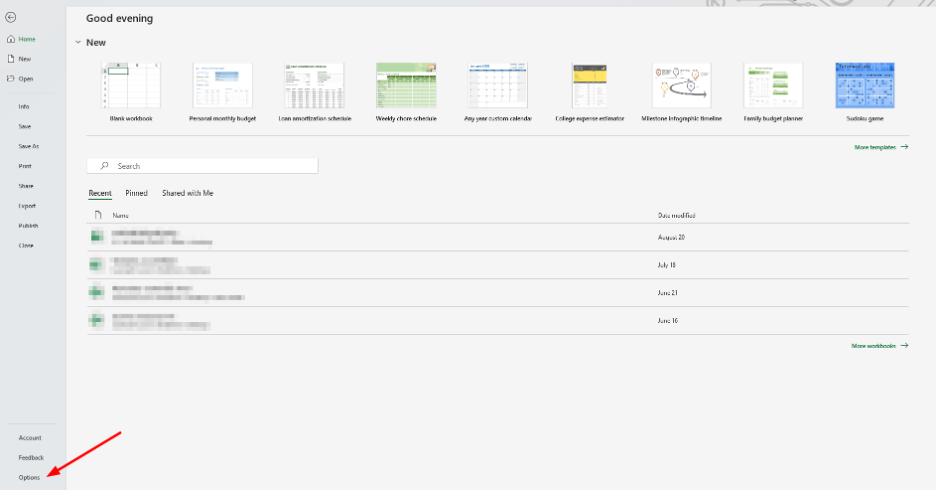 Navigate to File > Options to install Excel add-ins
- Select Add-ins from the left navigation tab in the Excel Options window. On the View and Manage Microsoft Office Add-ins window, select Analysis ToolPak (which should be listed under Inactive Application Add-ins). Click the Go button.
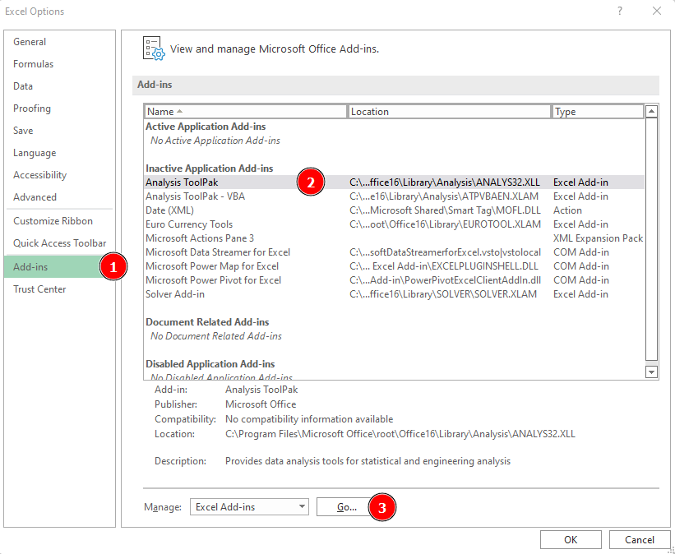 Analysis ToolPak listed under Inactive Application Add-ins
- Select the Analysis ToolPak checkbox in the Add-ins window and click OK.
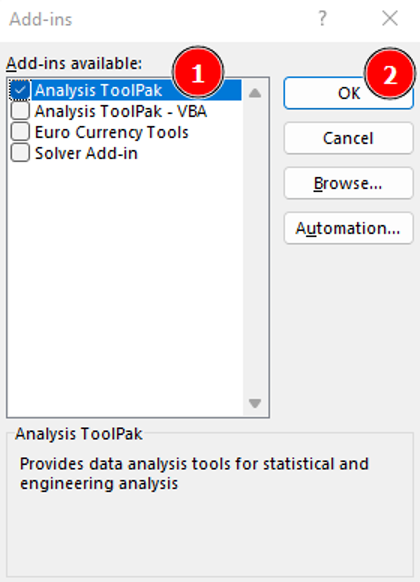 Check Analysis ToolPak box and click OK to install
- Finally, navigate to the Data tab in Excel and check the newly added Analysis section. The Data Analysis tool should now be listed there.
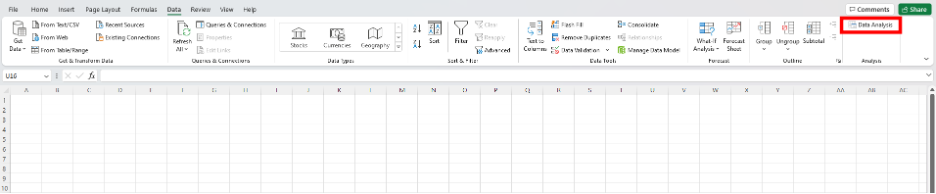 Data Analysis button appears in Data tab after installation
How to Install Data Analysis ToolPak in Excel on Mac
Installing the Data Analysis ToolPak Add-in in Excel on a Mac computer is straightforward like Microsoft Excel on a PC.
- Go to the Data tab in Excel and click on the Analysis Tools icon to open the Add-ins window.
 Click Analysis Tools icon in Excel for Mac
Alternatively, you can access the Add-ins window by navigating to Tools in Excel’s top menu and selecting Excel Add-ins.
- Select the Analysis ToolPak checkbox on the Add-ins window and click the OK button.
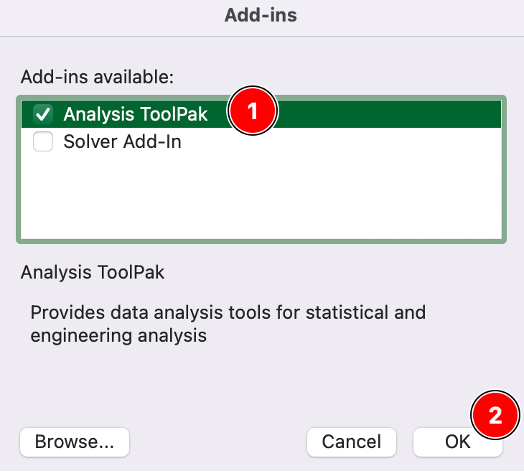 Select Analysis ToolPak in Add-ins window on Mac
- The Data Analysis tool should now be available on the Excel Data tab.
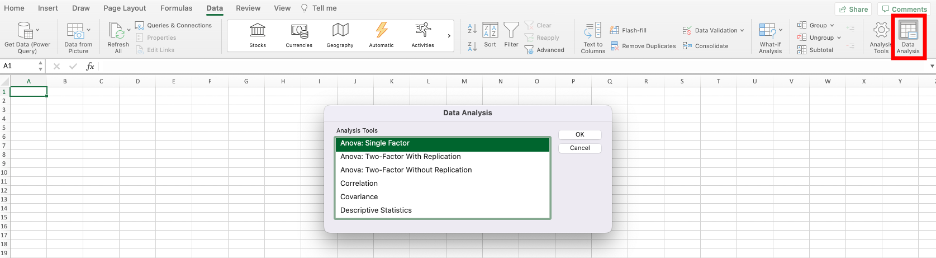 Data Analysis tool available in Excel for Mac Data tab
How to Remove Data Analysis ToolPak in Excel
To remove Data Analysis ToolPak in Excel, navigate to the Add-ins window [on PC: File Options Add-ins Go; on MAC: Tools Add-ins], unselect the Analysis ToolPak checkbox, and click the OK button.
Frequently Asked Questions About Data Analysis ToolPak
Wrapping Up
The Data Analysis ToolPak transforms Excel into a comprehensive statistical analysis platform, providing access to professional-grade statistical functions without requiring complex manual formulas. Whether you are working on Windows or macOS, installing this add-in takes just a few clicks and unlocks powerful analytical capabilities for research, business analysis, and academic work.
By following the step-by-step instructions in this guide, you can quickly enable the Data Analysis ToolPak and begin using advanced statistical functions including t-tests, regression analysis, ANOVA, correlation, and more. Once installed, the tool remains available in your Data tab for all future Excel sessions unless you manually remove it.
For users who need to perform regular statistical analyses, the Data Analysis ToolPak is an essential tool that streamlines workflows and improves accuracy. Take a few moments to install it today and experience the full statistical power of Microsoft Excel.
For more Excel statistical tutorials, check out our guide on descriptive statistics in Excel or learn how to calculate Cronbach's Alpha in Excel.